Import Data into Your CRM from Excel or CSV

Move your leads from Excel to CRM in just a few steps. Import your existing contacts into Leaf CRM and assign them for your sales team to follow-up.
Spreadsheet Integration With Leaf CRM Guide For Excel & CSV

Upload Excel or CSV file

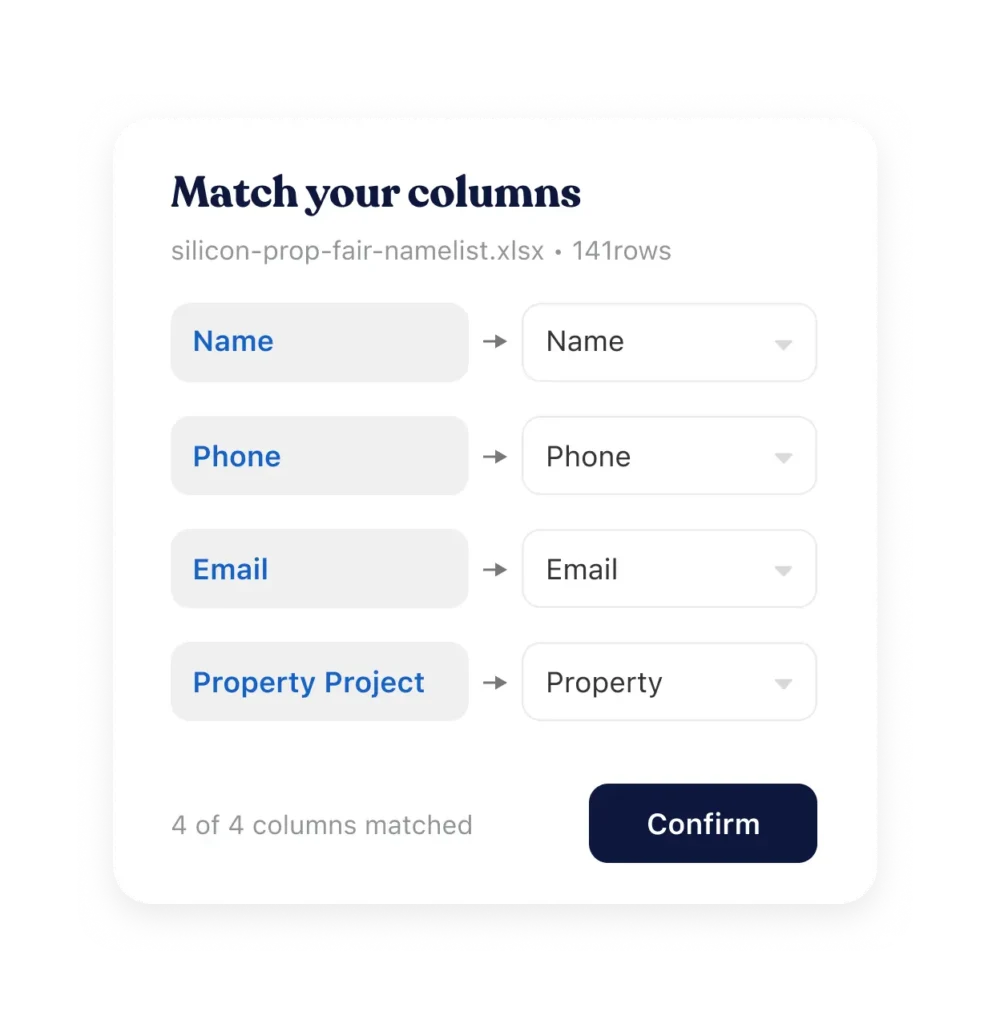
Match columns to Leaf CRM fields

Import leads into your selected campaign

What can you import into Leaf CRM?

You can import data into Leaf CRM using Excel (.xls, .xlsx) or CSV (.csv) files. Whether you’re moving existing contacts or uploading leads collected from an event, you can organise them into the relevant campaign. Before importing, make sure your spreadsheet is formatted correctly.

.xlsx

Excel 2007 and later

.xls

Older Excel files

.csv

From spreadsheets or other systems
Leaf CRM Import
education-fair-leads.xlsx
A
B
C
D
E
1
Name
Phone
Email
Courseor project, budget, policy type
Lead source
LEAF CRM
Name
Phone
Email
A custom field
One campaign per list
2
Tan Wei Ming
+60 12 345 6789
weiming.tan@leaf.my
Diploma in Nursing
Education fair
3
Nur Aisyah
+60 10 987 6543
aisyah.n@leaf.my
Foundation in Science
Education fair
4
Rajesh Kumar
+60 11 223 3444
rajesh.k@leaf.my
BBA (Hons)
Education fair
5
(empty row)Delete them
6
Total: 3 leadsDelete them
Leaf CRM field each column maps to Empty rows, totals, merged cells
NameName
PhonePhone
EmailEmail
Course, project, budget, policy typeA custom field
Where the lead came fromOne campaign per list
Empty rows, totals, merged cellsDelete them

How to Import Contacts from Excel to Leaf CRM in 6 Steps

Want to export contacts from Excel to CRM without entering them one by one? Follow these six steps to upload your existing leads into Leaf CRM.

Open your campaign

Go to the campaign where you want to import your leads and open the Lead Source tab.

Add an Excel/CSV lead source

Click New Lead Source and select Excel/CSV.

Prepare your spreadsheet

Make sure your Excel or CSV file contains the lead information you want to import, such as names, phone numbers and email addresses.

Organise your lead data

Keep one lead per row, with clear column headings. Remove any empty rows or duplicate entries before uploading.

Upload and match your columns

Upload your spreadsheet and match each column to the corresponding field in Leaf CRM, such as Name, Phone or Email.

Confirm your import

Review the matched fields and click Confirm to import your leads into the selected campaign.

Leaf CRM vs Excel: What’s Different About Managing Leads?

Moving your leads from Excel to Leaf CRM is more than just transferring data. Here’s how Leaf CRM helps your sales team manage, follow up and track leads after importing them.
In ExcelIn Leaf CRM
You need to manually share your lead list with your salesperson.Automatically distribute leads to your salesperson through Instant Lead Assignment.
Salesperson need to check the spreadsheet for new leads or updates.Salesperson need to check the spreadsheet for new leads or updates.
The same lead may appear in multiple spreadsheets, making it difficulty to track previous interactions.Master Lead Management links leads with matching contact information to one master record.
You need to manually update each lead's status in the spreadsheet.Salesperson can update lead stages through a customizable sales pipeline.
Salesperson need access to the spreadsheet to view or update their leads.Salesperson can manage their assigned leads through the Leaf CRM mobile app, wherever they are.

When Would You Need To Migrate Data From Excel to CRM?

Whether you’re switching CRM systems or collecting leads offline, you can import your existing contacts into Leaf CRM instead of entering them one by one.

Moving from another CRM

Switching CRMs? Export your contacts from your previous CRM into a CSV file and upload them into Leaf CRM.

After a fair or roadshow event

Collect lead information and export the list via Excel file into the relevant campaign so your salespeople can follow up with prospects.

Combining multiple lead lists

If your team keep separate spreadsheets for call-ins or referrals, you can import their leads into one campaign and manage them in one place.

Your data stays yours

Moving your leads into a CRM shouldn’t mean losing control of them

Hosted in Malaysia, in line with the PDPA.

Encrypted (SSL) between your device and Leaf CRM.

Each company’s data is kept separate from every other company’s.

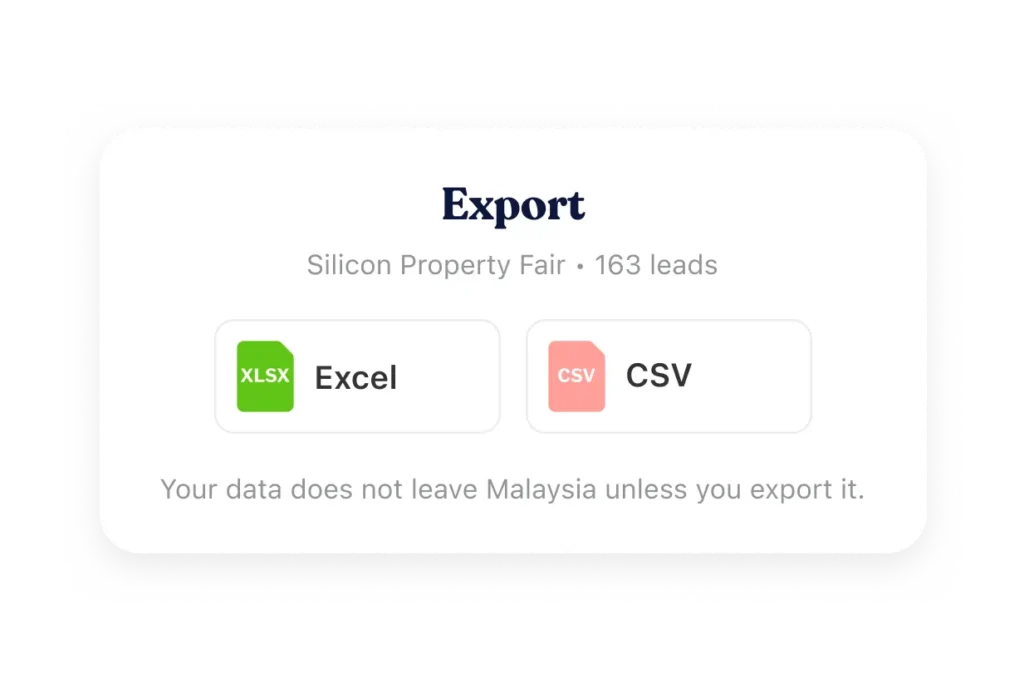
Go from CRM to Excel any time: export any lead list or report as CSV or Excel.

Admins can see every login and data change in the audit log.

More integrations for Leaf CRM

Frequently asked questions

Does Leaf CRM work with Excel?

Yes. Leaf CRM allows you to import leads from Excel (.xls and .xlsx) or CSV files into your campaigns. You can also export lead data and reports into spreadsheet formats for further analysis. If you’re looking for a CRM that integrates with Excel , Leaf CRM lets you move data between the two without requiring you to manage your leads in Excel.

Can Leaf CRM connect to Google Sheets?

You can import leads from Google Sheets by downloading your spreadsheet as an .xlsx or .CSV file and uploade it into Leaf CRM.

What happens if a lead from the Excel file is already in Leaf CRM?

Leaf CRM uses Master Lead Management to identify leads with matching contact information, such as their email address or phone number, and link them to a master lead record. This helps your sales team recognise returning leads and review their previous interactions instead of treating every enquiry as a new contact.


Start closing more leads in less time

Get instant access to powerful tools that help you track leads, follow up faster, and convert more prospects into paying clients.